

Coursedog Scheduling
The guide below is intended to assist departments and programs in utilizing the Coursedog software for course scheduling. A downloadable PDF of the guide is also available: Coursedog Scheduling Guide PDF.
1. Coursedog Overview & Goals
Coursedog replaces manual spreadsheets and email chains with a centralized scheduling platform that connects directly to our Student Information System (Banner), ensuring real-time data consistency.
Before Coursedog, scheduling often involved:
- Large amount of manual data entry
- Multiple spreadsheets and emails
- Potential data inconsistencies
- Overall inefficient and time-consuming processes
How Coursedog Helps
- Automates scheduling and data syncing with Banner
- Eliminates potential for duplicate entries and version errors
- Enforces institutional rules and timelines
- Provides transparency as schedulers can see other department/program course offerings in real time
- Enables data-driven planning and reporting
Institutional Goals for Coursedog Implementation
- Streamline scheduling with minimal manual entry
- Optimize room and faculty utilization
- Ensure compliance with academic policies
- Support student success through accurate, conflict-free scheduling
2. Scheduling Phases and Notes
| Phase | Description | Permissions |
| Term Rollover | Prior term sections are copied to the new term. | View/edit opens. |
| Drafting | Departments edit and create schedules. | Full edit access. |
| Validation | Review and correct issues. | Limited edits. |
| Submission | Department submits for School Dean approval. | Changes via request only. |
| Registrar Review | Registrar verifies and finalizes. | Registrar access only. |
Notes:
- Only the Department Chair/Program Director and Administrative Coordinator for each department/program have access to Coursedog to schedule courses.
- All scheduled courses will be reviewed by the School Dean and/or designee (if applicable) and the Office of the Registrar.
- If any merge/integration errors appear when editing or adding courses, please take a screenshot and send it to the Office of the Registrar.
- Please be sure to communicate with other departments/programs to ensure that any cross-listed courses are entered into the system accurately.
- If a course is cross-listed, the primary department offering the course must use their course series allocation for the course.
3. Logging In
- Go to app.coursedog.com. Bookmark this URL for easy access.
- Log in using your PC Single Sign-On (SSO) credentials.
- Click Academic Scheduling.

If you encounter issues logging in:
- Confirm your access permissions with the Office of the Registrar.
- Clear your browser cookies/cache.
- Contact IT for SSO troubleshooting.
4. Home Page Overview
Once logged in, you will land on the Coursedog Home Page, which summarizes your assigned departments and scheduling tasks.
4a. Department Dashboard
- Department(s) to which you are assigned.
- Number of courses/sections offered in the selected term.
- Conflict indicators (information missing from each section i.e. meeting times, instructors etc.)
- Schedule validation and submission status.
4b. Scheduling Timeline (across the top of the Home page)
Displays key scheduling milestones and submission deadlines for the current term. Please follow all posted institutional deadlines to avoid workflow delays.

4c. Account Settings
Accessible via your profile icon (top right):
- Default Views: Customize how your section dashboard is displayed by creating a new Saved View.
- Email Notifications: Choose Daily Digest or Immediate.


5. Section Dashboard
Rolled-over courses and sections from the previous like term will appear automatically.
Use the menu underneath the term box to toggle between:
- Section View: Lists every section individually.
- Course View: Displays each course and how many sections are offered.
- Calendar: Shows all department sections on a weekly calendar
- Departments: Shows the number of courses, sections, conflicts, and submission status of all departments

Apply Filters to locate courses or sort by status, instructor, meeting pattern etc.

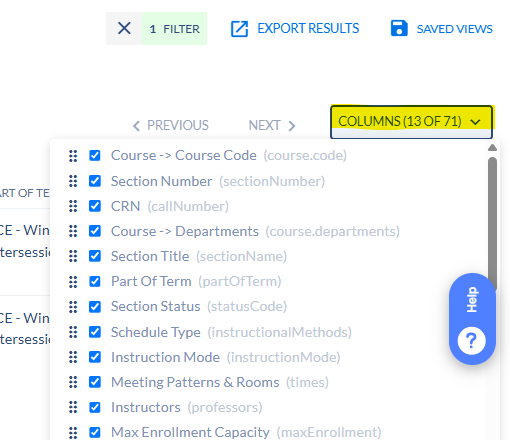
Use the Columns drop-down menu to customize the data shown for each section on the dashboard.
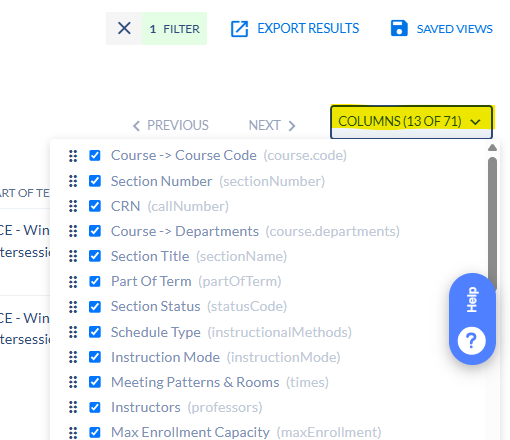
Create new Saved Views with preferred filter and column settings.


6. Managing Courses & Sections
6a. Adding a New Section to an Existing Course
- At the top of the Section Dashboard, click Add Section.
- Search for the course that you would like to add, and then click add section.
- Be sure to complete all required fields. Check for any Rule Violations at the top of the section builder.


Complete the Following Fields:
- General Info:
- Section number
- Section status
- Instruction mode
- Campus
- Class Schedule
- Part of Term

- Instructors:
- Defaults to your department’s faculty. If you cannot find an instructor your department, click the All Instructors toggle at the top of the window.
- Indicates if the faculty member has a conflict (i.e. Is already teaching a course at the same time)
- If assigning multiple instructors, then be sure to set one as Primary and one as Non-Primary by clicking Set Instructor Role & Details.


- Meeting Patterns:
- Select a standard meeting pattern from the provided options. Reference the course series chart as needed.
- After selecting a meeting pattern, click into Set Details to confirm the Schedule Type.
- All custom meeting patterns outside of the standard course series will need to be approved by the Office of the Registrar.


- Other Section Information
- Provide the Max Enrollment Capacity for the section
- Indicate if the section will be using the automated waitlist.

- Registration Restrictions/Notes:
- Use the Registration Restrictions drop-down menu to indicate if any additional restrictions should be placed on a course section. Some examples include:
- Department Chair/Program Director Permission
- Instructor Permission
- Class Level Restriction
- Major or Minor Restriction
- Student Attribute Restriction
- If setting a major, level, or attribute restriction, please elaborate in the text box.
- There is a final open text box for any additional notes or comments you’d like to send to the Office of the Registrar (ex. if a course should be cross-listed with another department)
- Use the Registration Restrictions drop-down menu to indicate if any additional restrictions should be placed on a course section. Some examples include:

- Schedule Type
- The system pulls in all available schedule types (Classroom Based, Asynchronous, etc.) Use the red trash can icon to delete all non-applicable schedule types. For example, if a course section will be taught in-person in a PC classroom, remove all schedule types aside from Classroom Based (CLS).

6b. Editing an Existing Section
- Select a section to edit.
- Modify meeting patterns, instructors, capacities etc.
- Save changes.
- Please note that after the schedule drafting phase has closed, changes will need to be reviewed and approved by the Office of the Registrar. In this case, you will be prompted to submit a Change Request and provide an explanation for the update.
6c. Adding a Course from Inventory
If a course is approved in the curriculum but not listed for the term:
- Click Add Course from the Section Dashboard.
- Search the catalog inventory for the course.
- Add the course, then create its section(s).


6d. Cancelling/Deleting a Section
- Select the section to cancel.
- Remove the meeting times and instructors.
- Click into the Section Status drop-down menu.
- Select Dept. Delete Section.
- Click Save Section.

6e. Rule Exception Requests
- There are certain rules set up in Coursedog to ensure that each course/section includes all the necessary information for it to populate in Banner/Cyberfriar.
- If a section you are editing is in violation of one of these rules, a banner will appear across the top of the section builder informing you of what must be corrected.
- For example, a section can not be submitted for validation without an assigned instructor or without meeting times.
- If a section must be built in violation of one of these rules, the scheduler may submit a Rule Exception Request for approval.


7. Schedule Validation & Submission
- Navigate to the Departments tab on the Section Dashboard. Click Validate Schedule for your department.
- Be sure to resolve all warnings and submit any necessary exception requests.
- When all warnings are cleared, your schedule is ready for submission. Click Submit for Validation.


8. Change Requests
- After the initial department scheduling phase has ended, all changes must be approved.
- Open a section and then click “Request Change.”
- Update necessary fields and include justification.
- Submit for review. Each request automatically routes to the appropriate approver.
9. Reports & Analytics
- Go to Reports on the side menu.
- Select Export from the Reports menu.
- Download your desired report type.


10. Resources & Support
- The Office of the Registrar is available to assist with any questions or concerns you may have with the Coursedog software. Please contact us by emailing scheduling@providence.edu or calling 401-865-1033. You can also contact any member of our registration team directly.
- There are also materials and guides available through the Coursedog Knowledge Base.
Office of the Registrar
1 Cunningham Square,
Providence, RI 02918, USA,
Harkins Hall 310
401-865-1033
401-865-1899
Hours:
Monday through Friday, 8:30 AM to 4:30 PM.
Registration Team
Catherine Rose
Administrative Coordinator
Classroom and Ad-Hoc Scheduling, Registration, Degree Audit Adjustments
401.865.1737
crose3@providence.edu
Vanessa M. Sullivan
Assistant Registrar
Undergraduate and Graduate Catalogs, Security Access and Banner Training, Registrar Websites, Registration, Classroom and Ad-Hoc Scheduling
401.865.2105
vsulliv2@providence.edu
Gina M. DeBernardo
Associate Registrar
Registration and Classroom Scheduling
401.865.2770
gdeberna@providence.edu